Essential features for organizing, planning and managing your works
Beesbusy has been made for occasional users and experts.
Project management
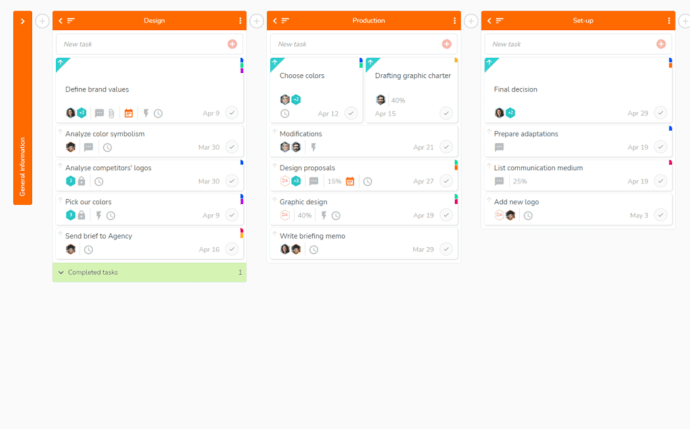
Kanban
Display all your tasks in custom lists:
- Organize your work as you wish.
- Once the task is completed, mark it as complete.
- Move a task from one list to another with one click.
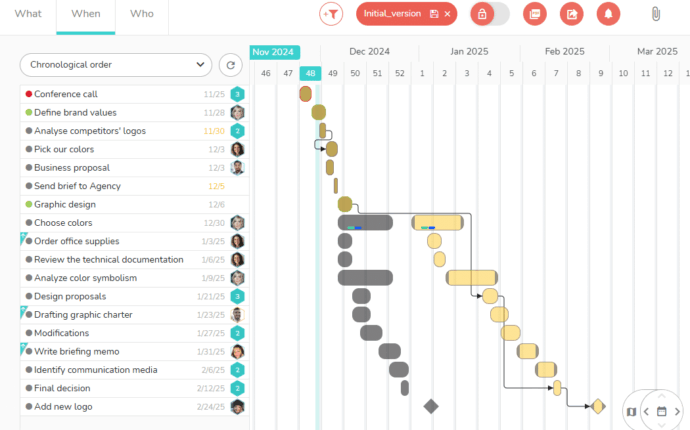
Gantt chart
With the When view, planning your projects becomes easy:
- Schedule, then move and reschedule your tasks by drag and drop.
- Structure your schedule with links and milestones.
- Compare the current schedule with its initial version.
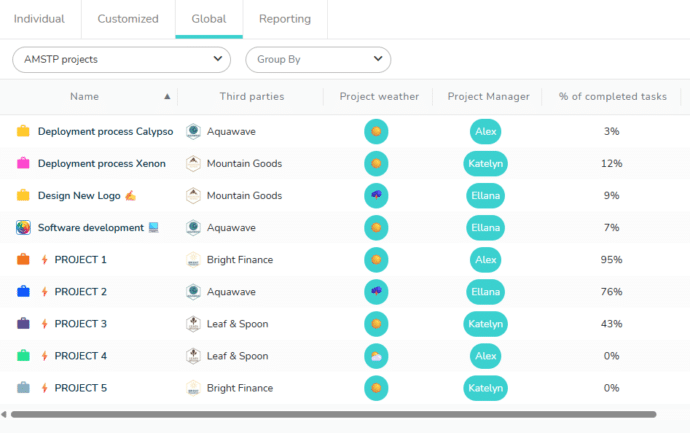
Dashboards
Manage your tasks and projects in a visual and overall way:
- Individual: all your tasks by category (in progress, overdue, etc.).
- Customized: create specific indicators for yourself and your team.
- Global: customizable project portfolios to track the progress of all your projects.
Resource scheduling
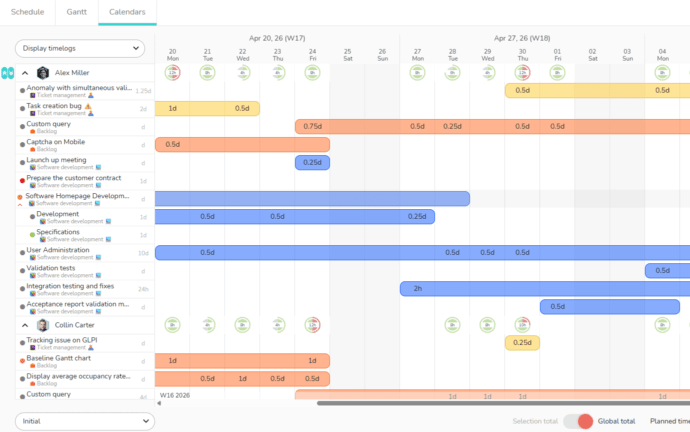
Multi-projects calendars
Plan workload in real time and on multiple projects at once:
- View the interventions of members on the different projects.
- Benefit from a workload overall view of your teams.
- Access schedule details and adjust your resources’ workload if necessary.
- Optimize the productivity of your teams.
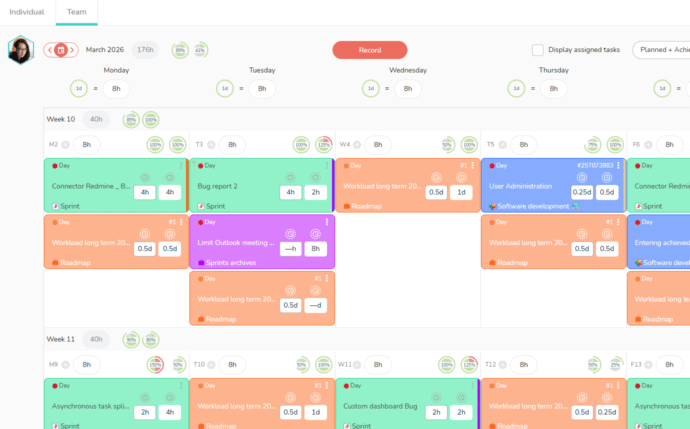
Individual Agenda
Customize, plan, and track your working hours:
• Adjust your working hours.
• Display your assigned tasks.
• Enter planned and/or achieved working time.
• Manage your periods of unavailability (leave, sick leave, etc.).
• View your occupancy rates.
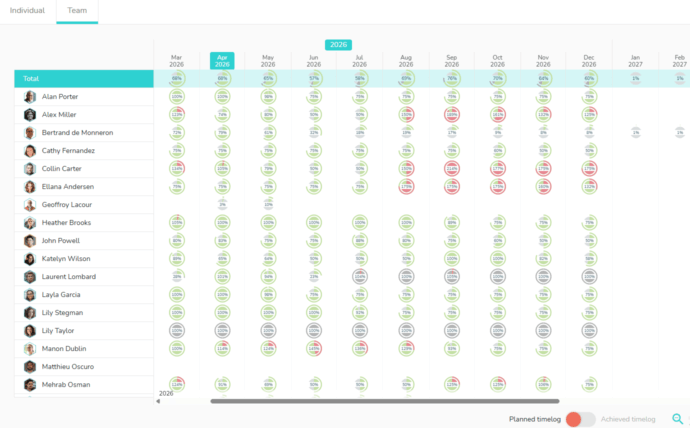
Team Agenda
Make long-term strategic decisions based on a consolidated view of your teams’ workloads:
• Filter by team, department, or skill type to view availability.
• Zoom in on a monthly, half-yearly, or yearly view, depending on your forecasting needs.
• Find answers to your questions: can the team take on a new project? How soon? Is hiring necessary?
Time management
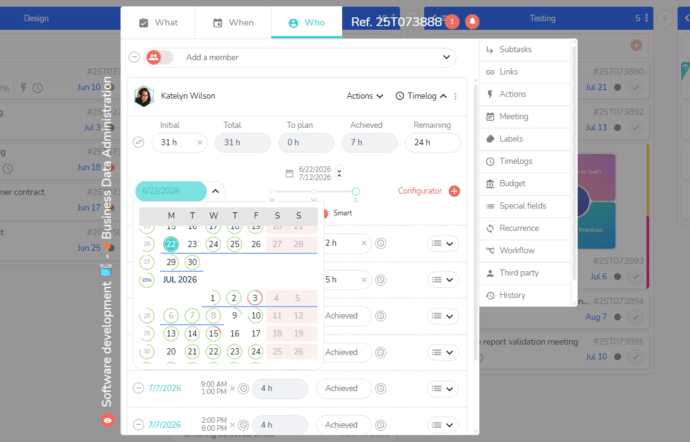
Workload planning
In the Who tab of the task, various options are available to you, depending on your needs:
- Visualize the availability of the member before planning his workload.
- Select the time unit that best suits you: hour or day.
- Use the smart scheduling feature to take into account configured daily time slots: start time, breaks, end of day…
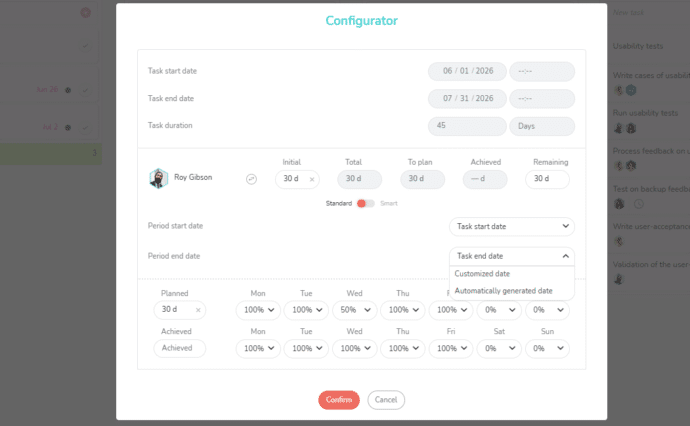
Time configurator
Allocate your estimated time automatically over periods of varying lengths:
- Select the planning period: the task duration or custom dates.
- Estimate the workload you have to distribute over the period.
- Specify whether the resource must remain available for other work on certain days.
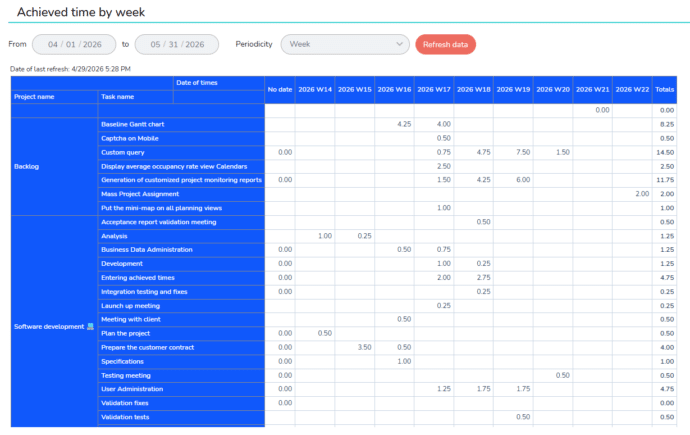
Reporting
Create your own reports by project or project portfolio:
- Select the items to display in rows and columns.
- Track your times by project, task, resource, etc.
- Compare the forecast with the actual results.
Features to adapt Beesbusy to your organization and needs
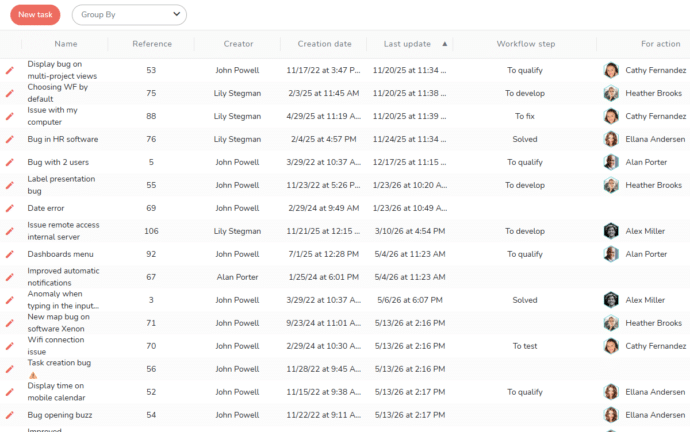
Portal
Set up requests creation portals tailored to your uses:
- Provide your users a simple interface for creating demands.
- Process requests directly within Beesbusy.
- Use portals for internal purposes (IT ticketing, HR requests, etc.) or client-facing activities (acceptance testing, operational support, etc.).
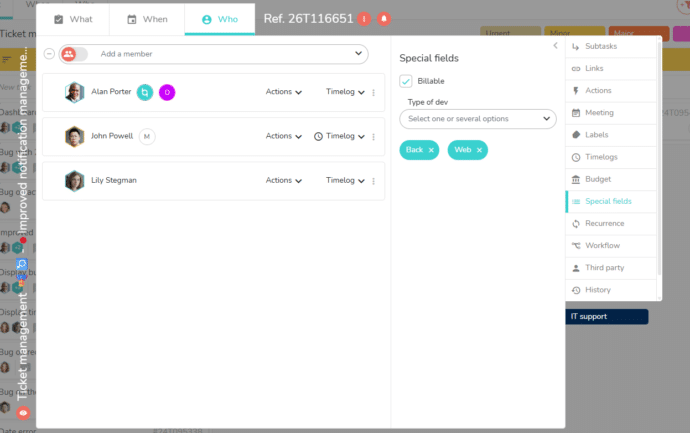
Custom fields
Create your own fields to manage the information you need:
- Choose the field type you require: value list, checkbox, text field, etc.
- Apply your fields to the relevant items: projects, tasks, time entries, etc.
- Leverage this custom information in the global dashboard, the portal, and all views using filters based on these custom fields.
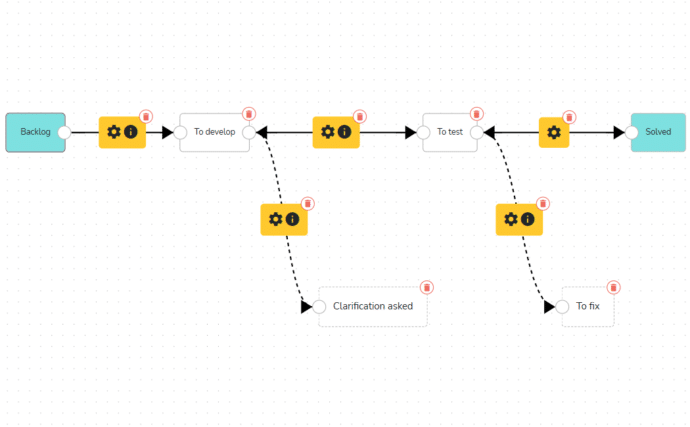
Workflow
Reflect your workflow constraints in your Kanban boards:
- Visually define your workflow stages.
- Select the actions required to move from one stage to the next.
- Ensure process compliance by making these actions mandatory.





























Frequently Asked Questions
What is a Gantt chart?
The Gantt chart allows you to visualize the scheduling of tasks on a planning, to follow their completion and the overall progress of the project.
The Gantt chart also materializes the links between tasks if some of them are conditioned by the realization of other tasks. It also allows you to easily visualize the main deadlines in the form of milestones.
The coordination of the project and the associated tasks is based on the construction and the update of this project schedule according to the operational realization of the work.
The project schedule will be all the more relevant as it integrate the workload constraints of the various resources involved in the project.
What is the definition of the workload?
Workload is the amount of time it takes to complete a task. It is different from the duration of a task.
Indeed, a project member can have a workload of 2 days to achieve a task whose duration is 5 days.
For example, a painter will work a day to apply the 1st layer of paint, wait 3 days before coming back to work a day to apply the 2nd layer. The duration of the task “Painting the facade” is indeed 5 days but the workload of this task is 2 days.
The distinction between the workload and the duration of the task then allows the member to position himself on other tasks up to 3 days (workload), to parallelize the member’s tasks and to optimize his working time.
Conversely, it is not possible for a project member to work 7 days on a task that last 5 days. Therefore, if the workload of a member is 7 days on a task that lasts 5 days, the duration of the task in the schedule must be modified so that it lasts at least as long as the member’s workload, thus ensuring the consistency of the schedule. In this example, it is also possible to distribute the workload among several resources.
The workload is an essential component of time management to ensure the consistency of the schedule, optimize the parallelization and sequencing of tasks according to the availability of project resources.
What is time management?
Time management integrates the notion of workload in different forms in order to achieve a precise and coherent planning:
- The initial time is the forecasted workload of the work (the painter will have 2 days of work to put on the 2 coats of paint, or the consulting firm has sold a 2-days mission for a consultant).
- The achieved time corresponds to the work done (the painter or the consultant has worked 1 day).
- The remaining time is the time necessary to finalize the work. This is normally obtained by subtracting the time of work carried out from the initial time of work, but this can vary in response to a bad evaluation at the start or to operational unforeseen events (the painter or the consultant notices after the 1st day that he will need an additional day Initial time = 2; Time achieved = 1; Time remaining = 2).
- The total time is the sum of the time achieved and the time remaining. This may be different from the initial time in case of a bad evaluation at the beginning, or operational contingencies (Initial time = 2; Time achieved = 1; Remaining time = 2; Total time = 3). This total time must then be planned (Planned time) for a complete planning and the good progress of the project.
Very few project management solutions offer elaborate time management features by distinguishing these notions. Most project management applications only propose to enter time, but this is insufficient if you want to have a vision of the remaining workload in order to plan it and identify the impacts on the project schedule.
More than 80,000 users rely on Beesbusy

Customization
You have specific needs, we can make custom developments.

White-label
Add your logo and choose the colors of your workspace.

Online help
With online help and support at your service, your questions will not go unanswered.

Privacy policy
Your data is used only by us and is never resold.